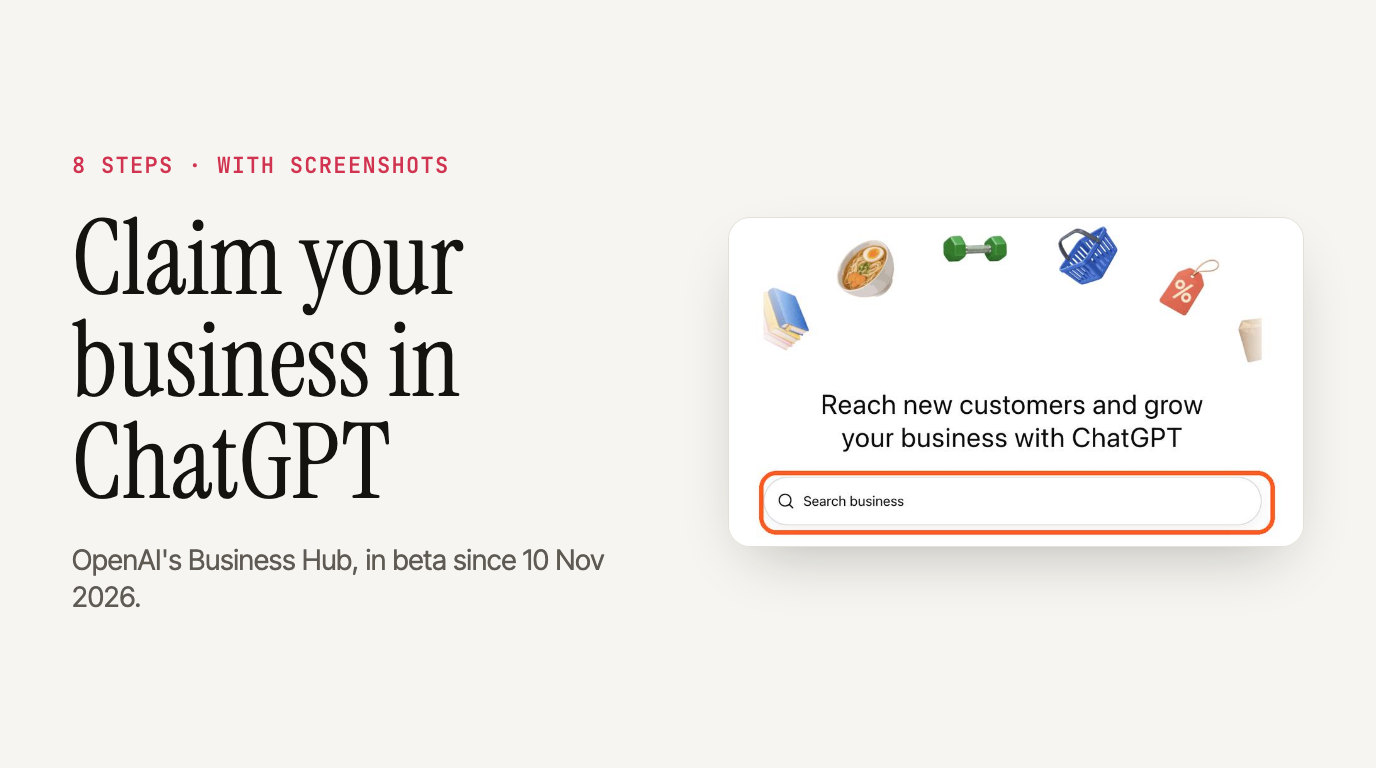
You can now claim your business in ChatGPT. OpenAI opened Business Hub in beta on 10 November 2026. You find your business, prove the domain is yours, and then you can fix what ChatGPT says about you and see how often it mentions you.
In short: Go to chatgpt.com/business-hub, search for your business or create it, verify your domain with a DNS TXT record, then pass an ID check. OpenAI lists no fee for claiming.
This is the written version of a carousel I made for my Koffee with Kishan series on Instagram. The PDF has all eight steps with screenshots, so keep it open next to your DNS settings while you do this.
Download the 8-step guide (PDF) Book a meeting
Why bother claiming it?
Because ChatGPT already talks about you. It shows information about your business whether you claim it or not, which means the real choice isn't whether you appear but whether you get any say in what people read about you when you do.
Once you're verified, you can edit your website, description, category, logo, cover photo, and your delivery and return policies. You also get insights for the past 28 days. They show how many times ChatGPT mentioned you and how many clicks it sent to your site, plus the topics where your site gets cited. That's from Search Engine Roundtable's launch write-up, which also caught a small honest line in the dashboard: "Clicks don't confirm website visits or conversions."
I'd claim it now. It's free. And nobody else should be writing your description.
Before you start
Have three things ready.
- Your domain's DNS login. That's wherever you bought or host your domain. If an agency or IT person manages it, ask them before you start, not halfway through.
- A way to prove you're the business. The DNS record is the route in these screenshots. OpenAI also accepts a call or text to your business number, a business email, or a Shopify store, depending on the business.
- Your ID and registration papers. After the claim is approved, there's an identity check. More on that below.
Can you claim your business in ChatGPT from India?
Yes, if your customers buy through your website. Online businesses in India can claim their listing right now.
Physical businesses can't, yet. If people come to your shop, clinic, office or restaurant, the physical location route in India is on a waitlist. That fits what Flavio Copes saw on launch day: physical stores and restaurants could only claim an existing US listing. If you have both a shop and a website, claim through the website now and come back for the shop later. It's a beta, so check again in a few weeks.
How to claim your business in ChatGPT, step by step
Step 1: Open Business Hub
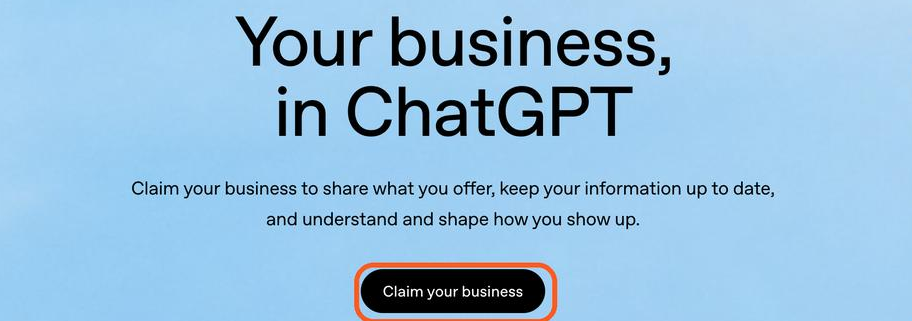
Go to chatgpt.com/business-hub. You can also start from OpenAI's Businesses in ChatGPT page and tap "Claim your business".
Step 2: Search your business name
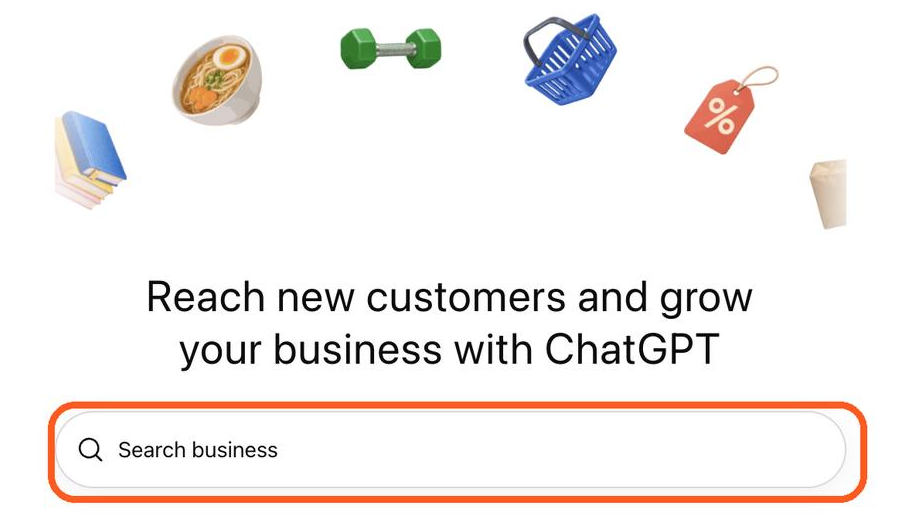
Sign in to ChatGPT. You land on Business Hub. Type your business name into the search bar.
Step 3: Pick it, or create it
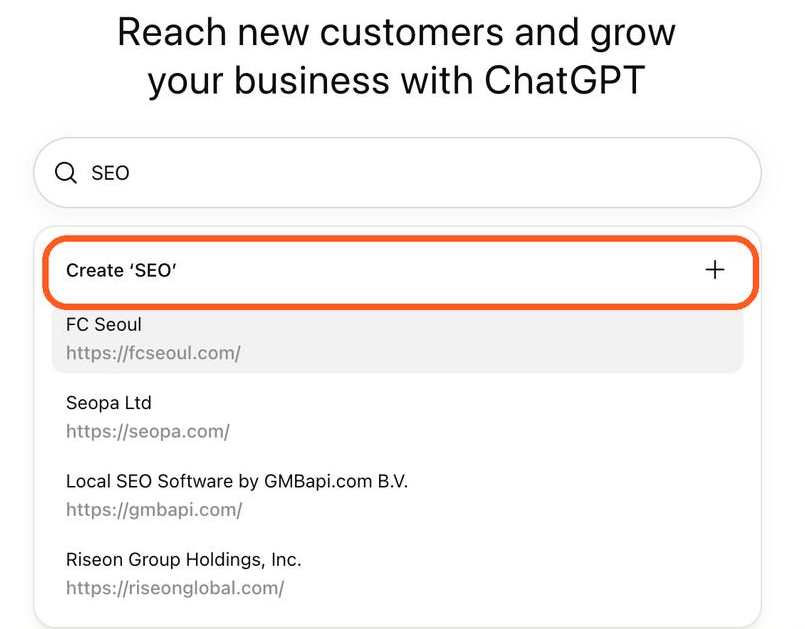
If your business shows up, select it. If it doesn't, tap Create. In this screenshot the test name was "SEO", so the button reads "Create 'SEO'".
Two things you might see instead. A listing that says "Contact support" is locked. And if someone else already claimed your business, use "Dispute ownership" in the profile's menu.
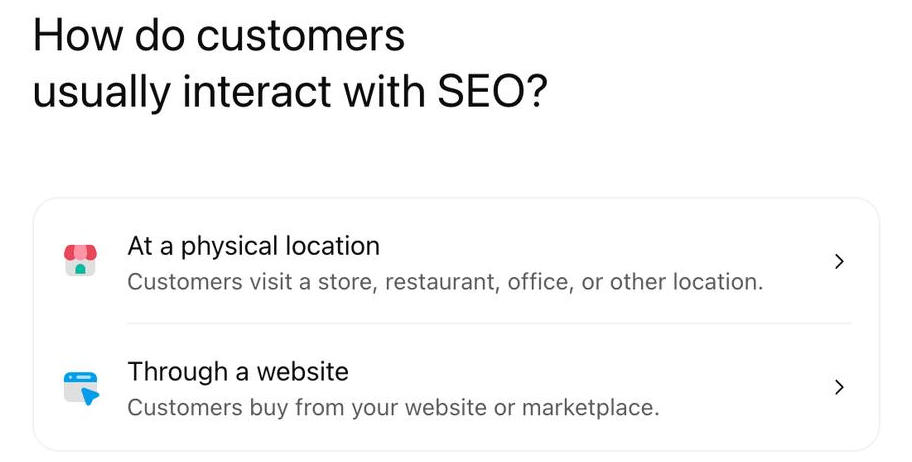
Step 4: Tell it how customers buy from you
Pick "At a physical location" if people come to a shop or an office. Pick the online option if they buy from your website. In India, only the website route is open right now; physical locations go on a waitlist. In this screenshot it reads "Through a website"; on launch day some people saw "Through an online store", with "Through a service" marked coming soon. Same choice, different label.
Step 5: Add your website
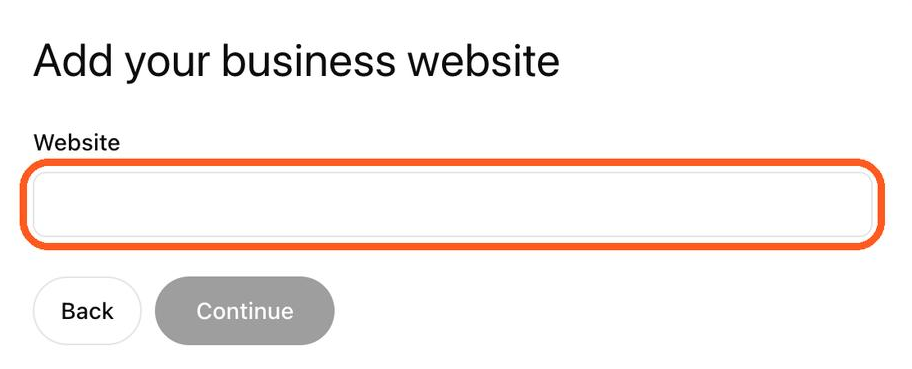
Type your website address and tap Continue.
Step 6: Prove the domain is yours
This is the step that takes real effort, so give it the most attention.
ChatGPT shows you a TXT record with three parts: Type, Name or host, and Value. Open your domain provider's DNS settings in another tab and add a new record. Set the type to TXT. Copy the name and the value exactly, using the copy buttons, because one stray space is enough to fail. Save it, come back, and tap "Verify domain".
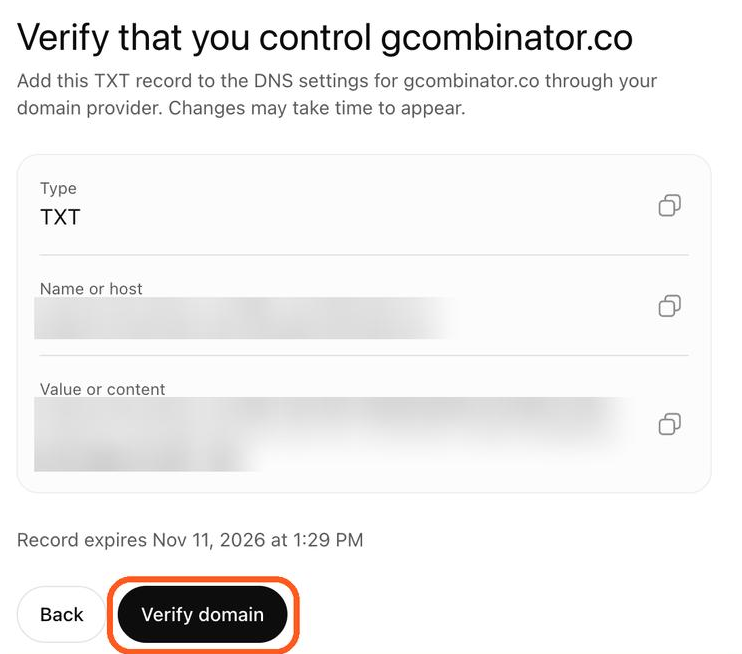
Look at the line under the record, because it tells you exactly when this record stops working, and in this screenshot it says "Record expires Nov 11, 2026 at 1:29 PM". It won't wait. Add it soon after you get it.
Step 7: Not verified yet? Give DNS time
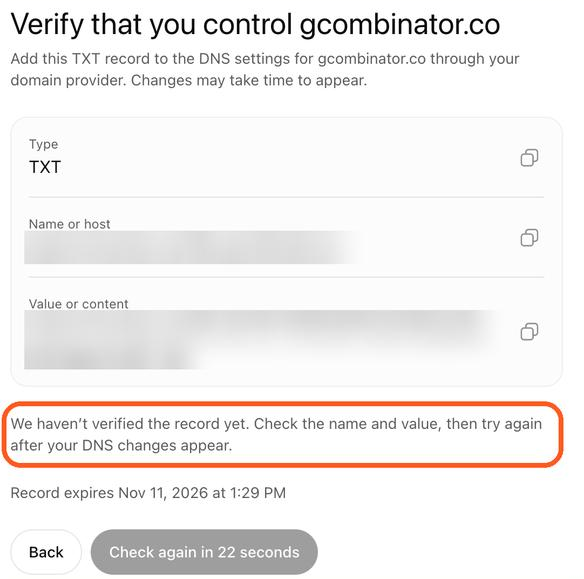
DNS changes take a while to reach everyone. Don't panic. If you see "We haven't verified the record yet", check the name and value against what ChatGPT shows, letter by letter, and then wait before you tap "Check again", which counts down on its own so you can't keep pressing it.
Step 8: Check your status
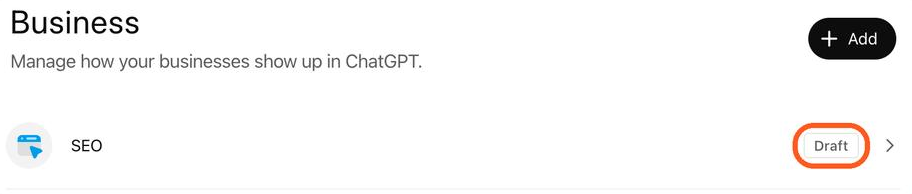
Business Hub lists every business you've added and where each one stands. Right after this claim, the listing showed "Draft". OpenAI reviews the claim and sends the decision by email.
After approval: the ID check
Approval isn't the end. Before you can publish changes, connect a product feed or see insights, you verify your identity through Persona.
Persona may ask for a government-issued ID, your business registration details and proof that you're allowed to act for the business. Your name, address and registration or tax number have to match your official records. So if your GST certificate says one address and your website says another, fix that first. Once Persona approves you, the profile gets a blue check.
Does claiming push you up in ChatGPT's answers?
No. OpenAI says it plainly: claiming carries no guarantee of better placement or more sales, and ChatGPT keeps making its own recommendations. Ads are a separate, paid product, and sponsored spots are labelled and kept apart from the answers.
So treat the claim as hygiene. Your details are right, and you can see the mentions and clicks. What gets you named in the answers is still the slow work: being the page other people quote. I wrote about that in how to get cited by ChatGPT with a stats page. If your SEO isn't moving at all, start with these seven fixes.
Get the PDF
All eight steps, with the screenshots, on ten pages you can save or send to whoever looks after your website. I post these on Instagram at @koffeewithkishan.
Keep reading.
Drop your email and the rest of this post opens, along with everything else I write here.
ONE EMAIL, ONCE. NEVER SHARED.
Thanks for reading this far.
I am open to remote growth and Entrepreneur-in-Residence roles in crypto. If any of this was useful, the rest of what I have built is one click away.