 kiddo
kiddo
How to use Kiddo.
Five minutes, once. Every step has a picture.
1. Get Kiddo
Mac (macOS 13+) or Windows 10/11.
-
1
Buy once, keep it forever
Tap Get Kiddo on the Kiddo page, pick Mac or Windows, and pay. The download link comes by email.
Link expired? Use Download again with your email.
2. Install it
-
 2
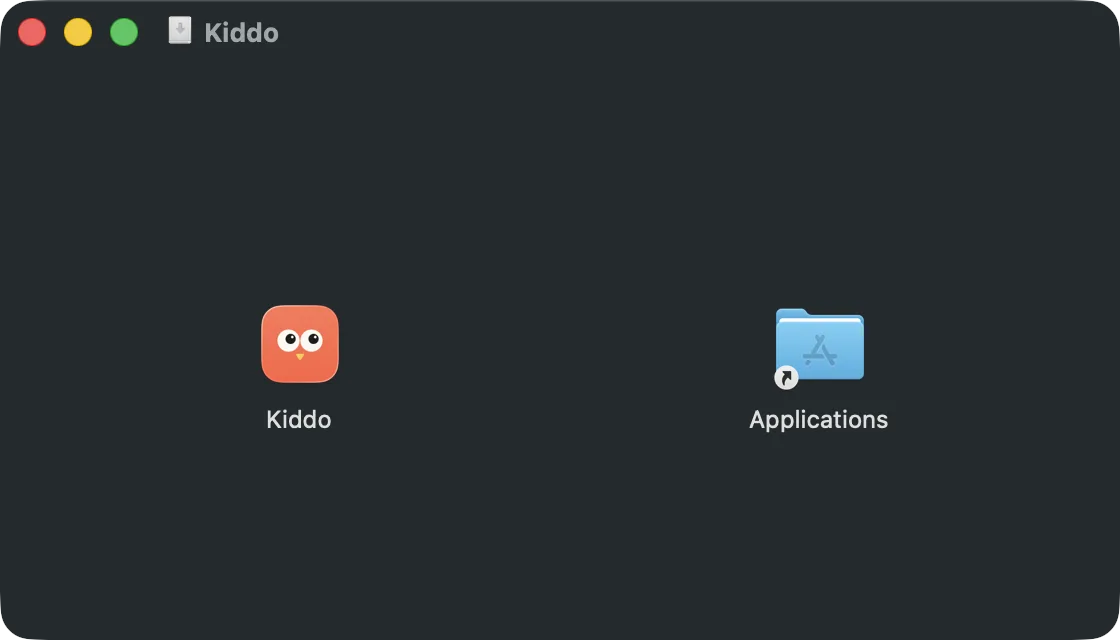
2Drag into Applications
Open Kiddo.dmg and drag Kiddo onto Applications.
-
3
Say yes, once
Open Kiddo. If macOS blocks it, go to System Settings → Privacy & Security and click Open Anyway.
Only the first time.
-
4
Activate, once
Type the email you paid with, then the 6-digit code we send you.
One purchase works on 2 Macs.
-
5
Turn on the lock
Switch Kiddo on in System Settings → Privacy & Security → Accessibility.
So fn K works everywhere and ⌘Tab can't sneak out. Nothing you type is saved.
 Kiddo
Kiddo-
2
Open it, say yes once
Open Kiddo-Setup.exe. If Windows says it protected your PC, click More info, then Run anyway.
Only the first time.
-
 3
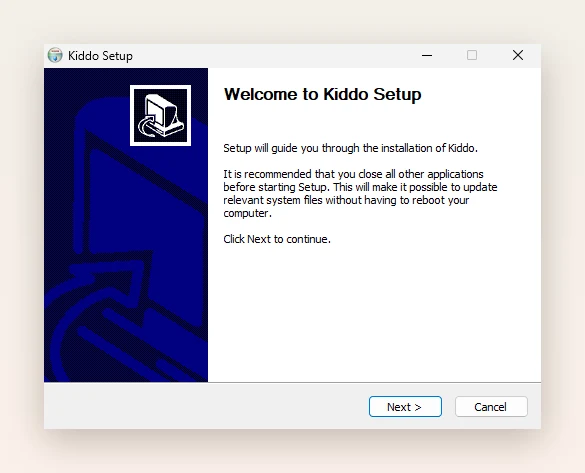
3Install
Click Next until you see Finish.
No admin password needed.
-
 4
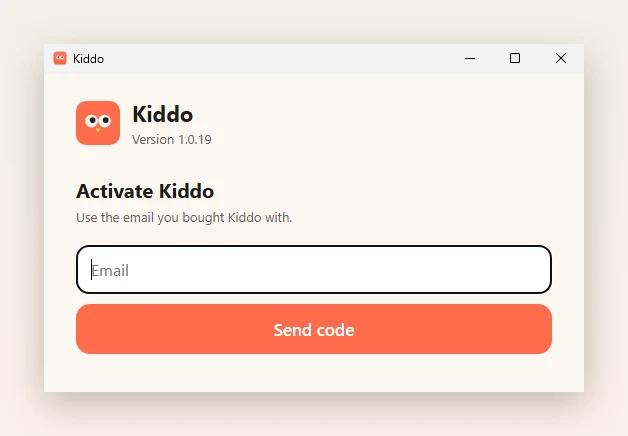
4Activate, once
Type the email you paid with, then the 6-digit code we send you.
One purchase works on 2 PCs.
3. Play
-
65
Press fn KAlt Z
Or choose Start playtime from the owl in the menu bartaskbar tray.
The screen locks until a grown-up says so.
-
 76
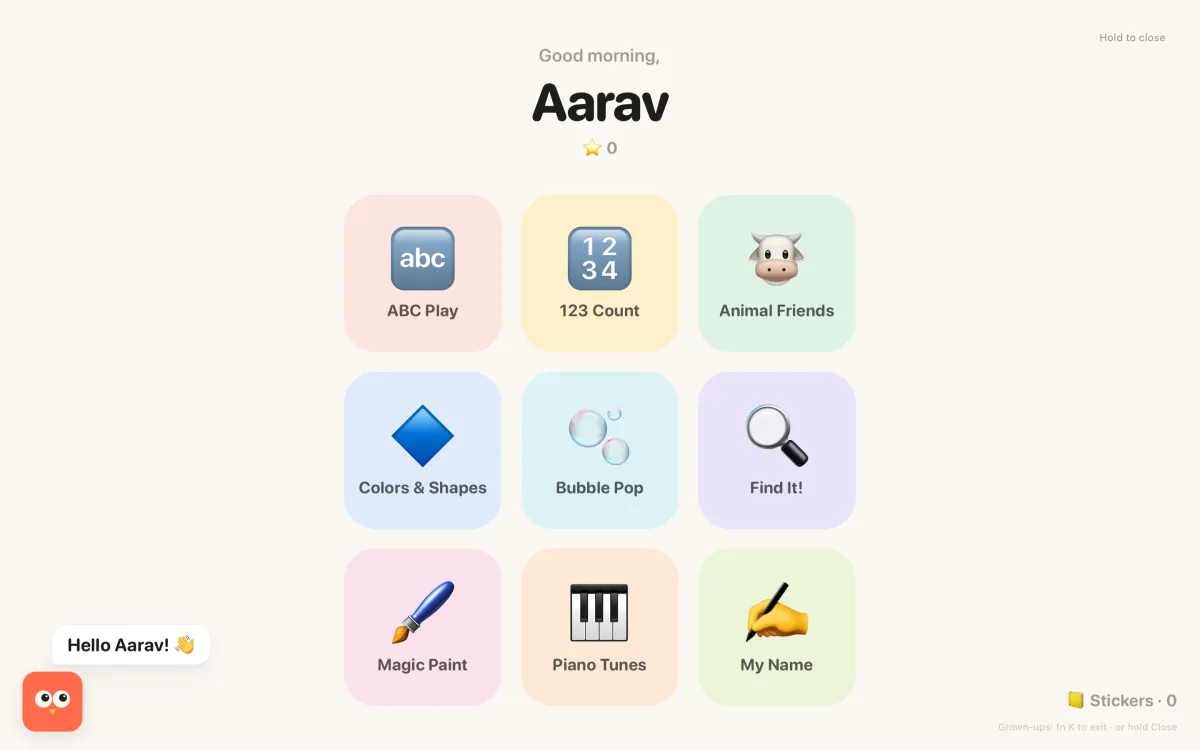
76Pick an island
Kiko says hello. Tap an island, or press any key: every key talks.
Every 5 stars earns a sticker.
-
 87
87Grown-ups get out
Press fn KAlt Z again, or hold Close for a second and a half.
A quick tap does nothing. The ⚙ gear opens settings after a quick sum.
The nine games
For ages 2 to 7. Set the age in the grown-ups' window and each game gets gentler or trickier.
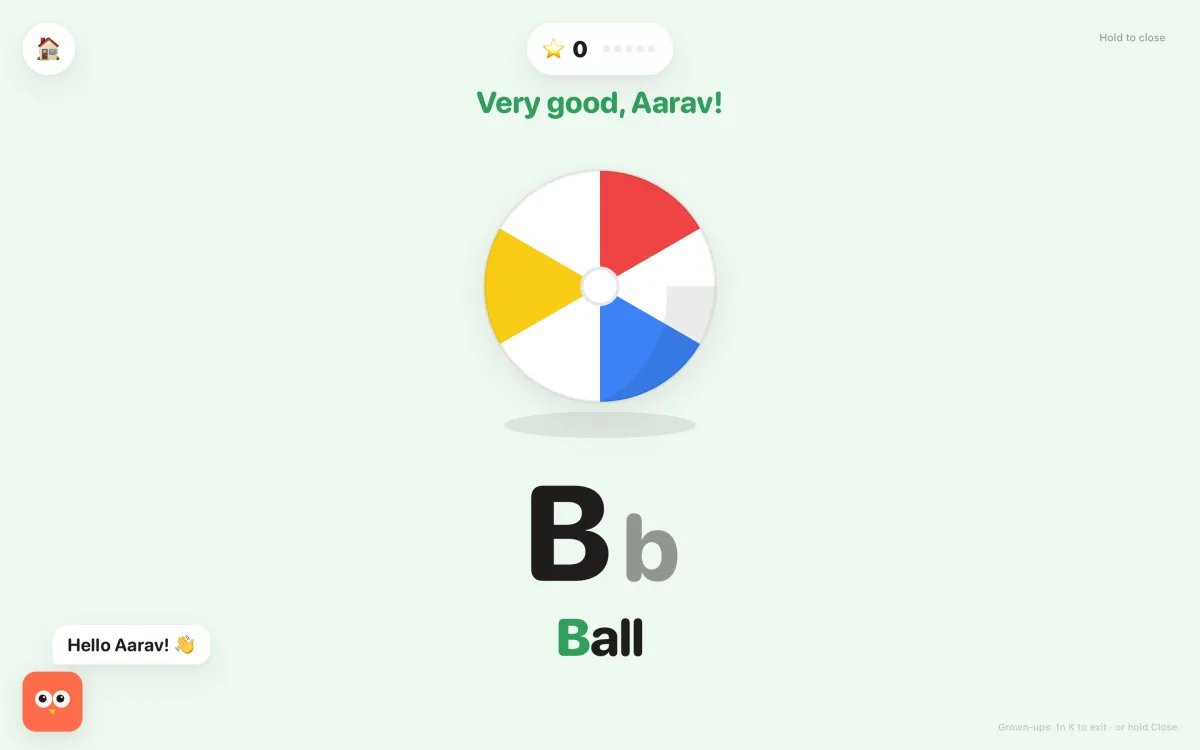
🔤 ABC Play
Every key shows a picture and says it: “A for Apple”.
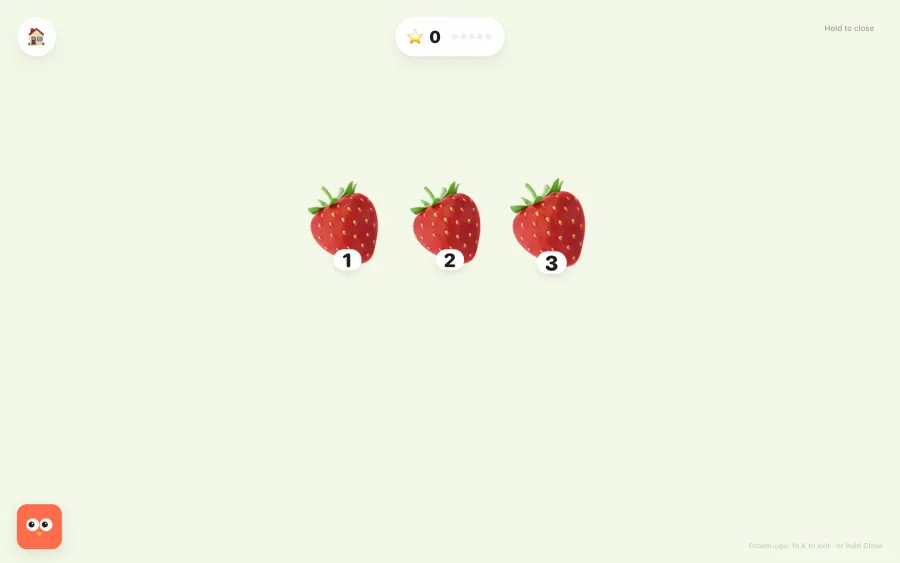
🔢 123 Count
Press a number and that many friends pop in, counted aloud.
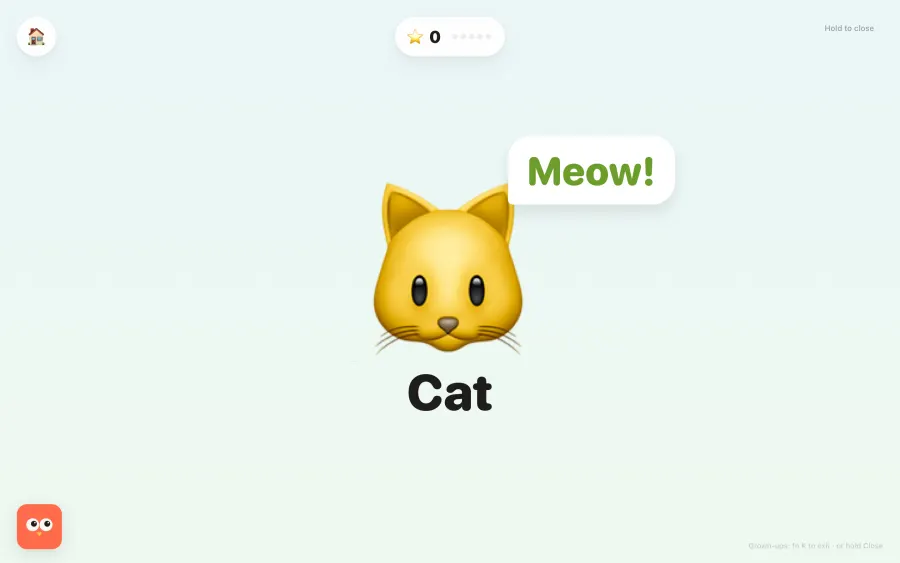
🐮 Animal Friends
An animal for every key, with its sound.
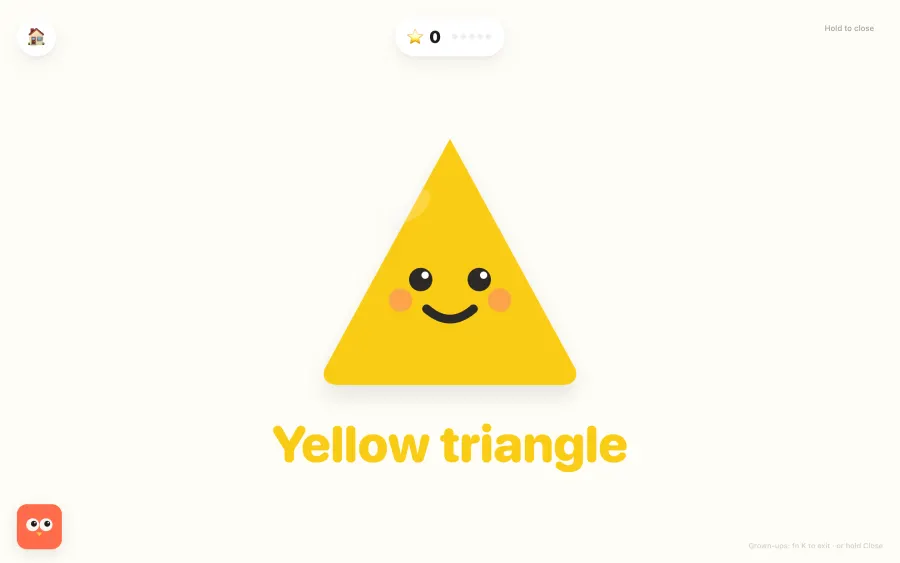
🔷 Colors & Shapes
Smiling shapes in colours: “A red circle!”
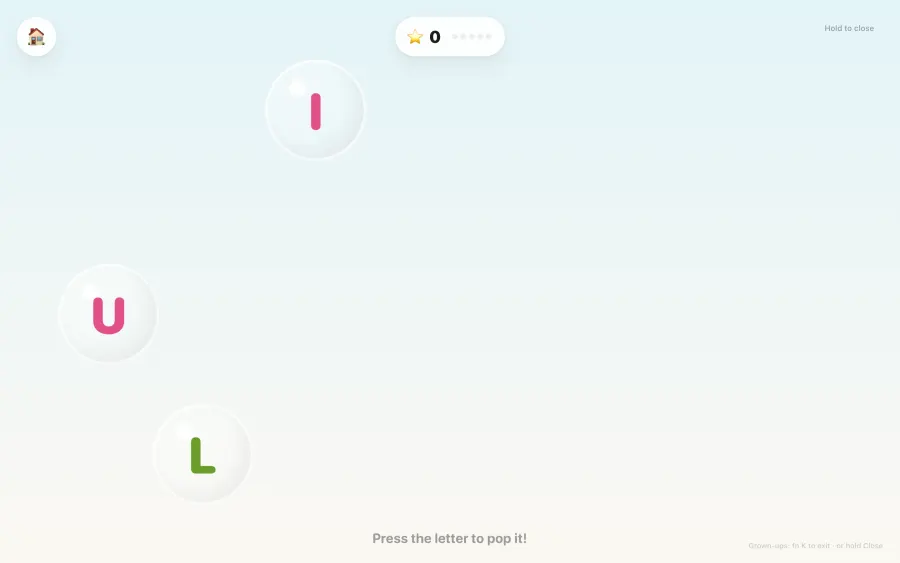
🫧 Bubble Pop
Letter bubbles float up. Press the letter, or tap, to pop.
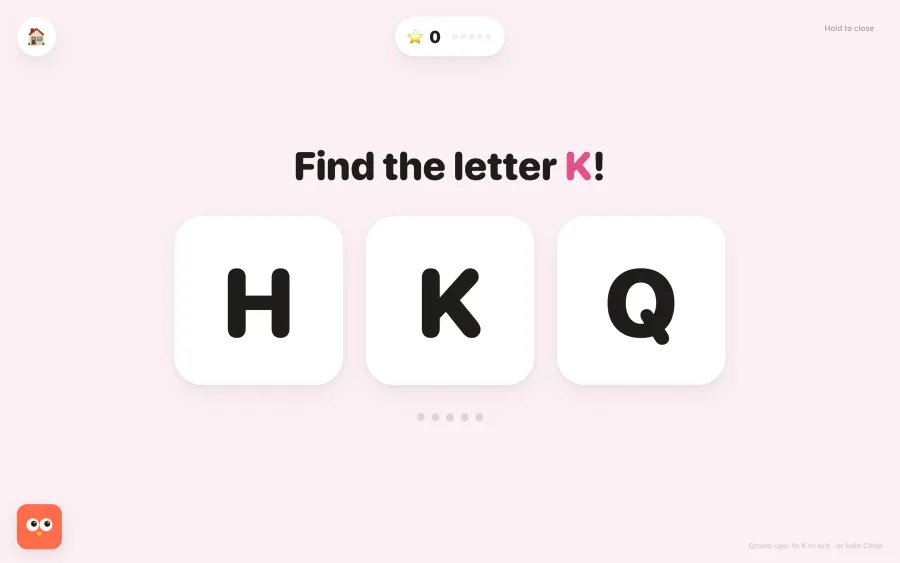
🔍 Find It!
A gentle quiz with no buzzers. After two tries the answer glows.
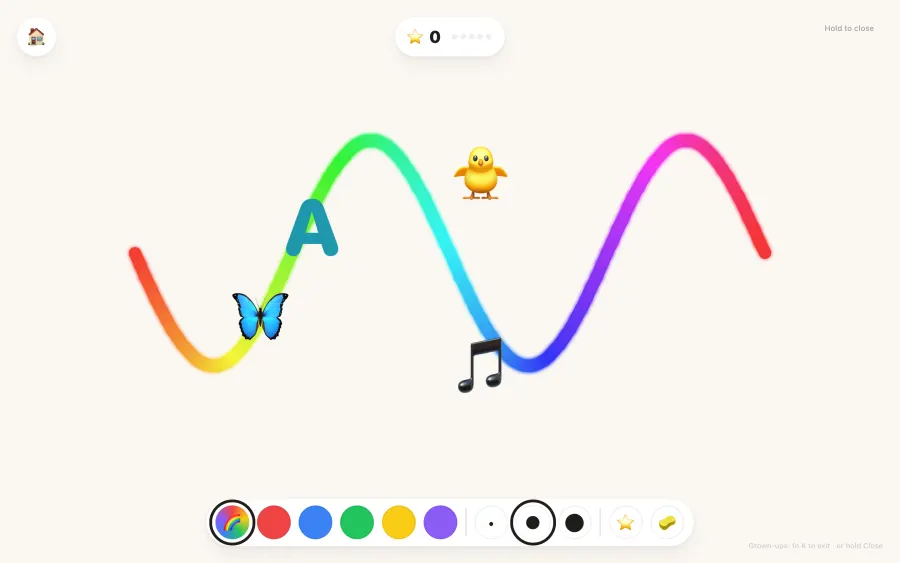
🖌️ Magic Paint
The pointer paints rainbows, keys stamp stickers, Space wipes.
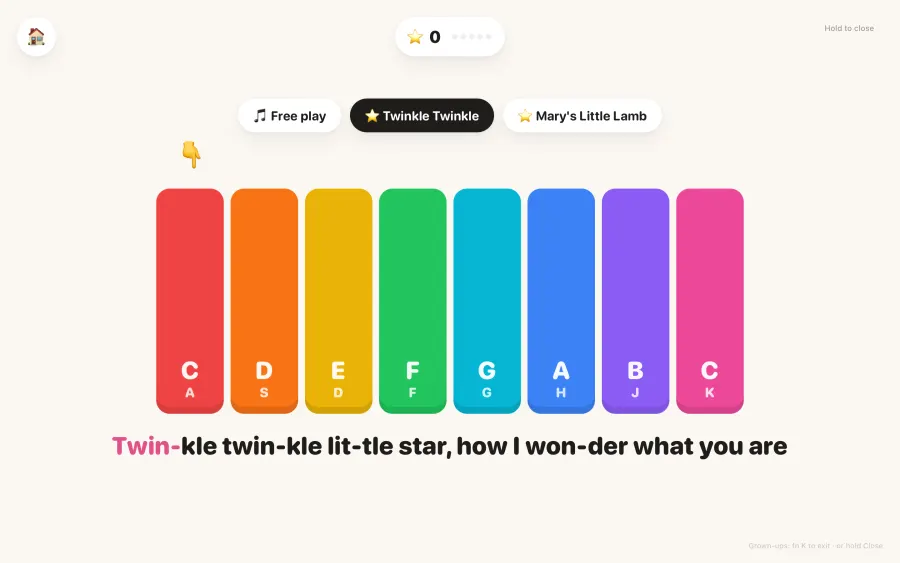
🎹 Piano Tunes
Eight coloured notes, and Twinkle Twinkle with a finger to follow.
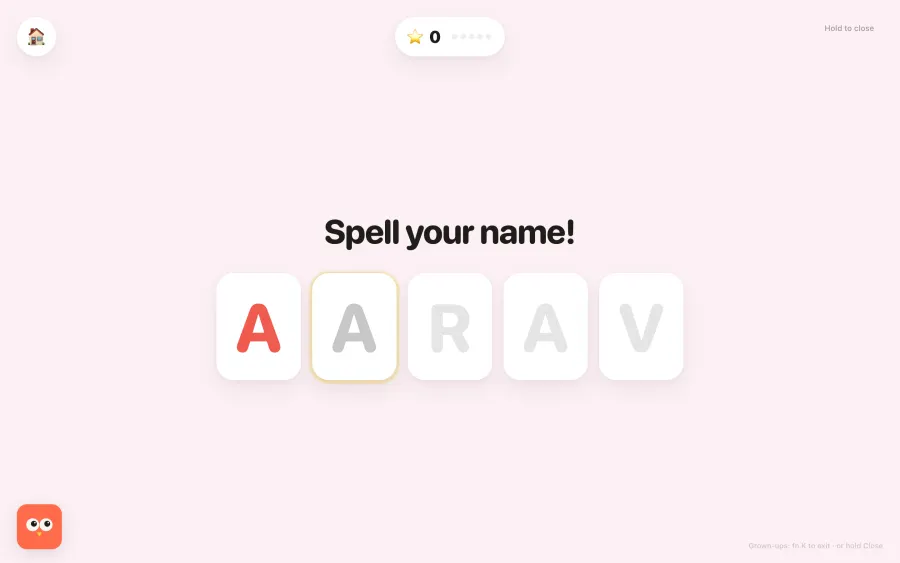
✍️ My Name
Spell their own name, then short words with pictures.
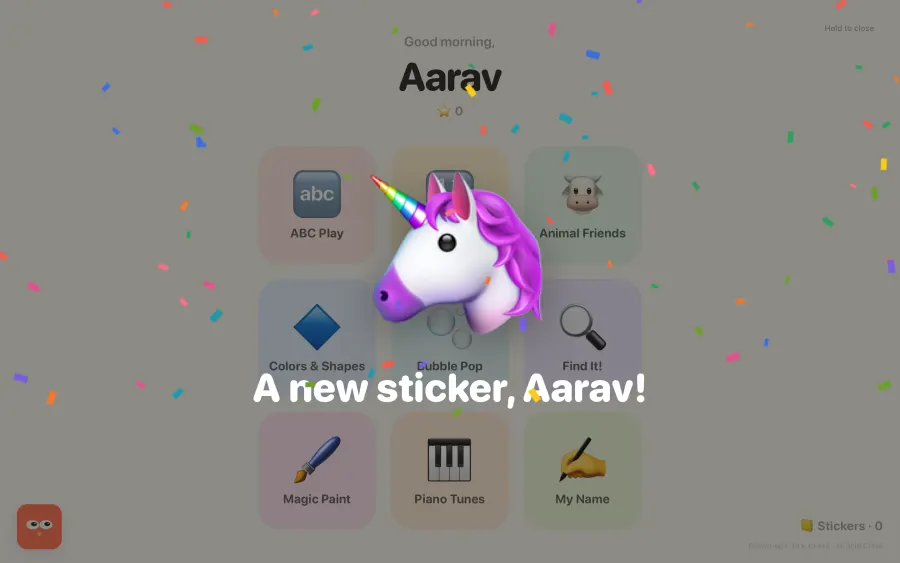
⭐ Stars and stickers
Rewards for trying, confetti, and cheers by name.
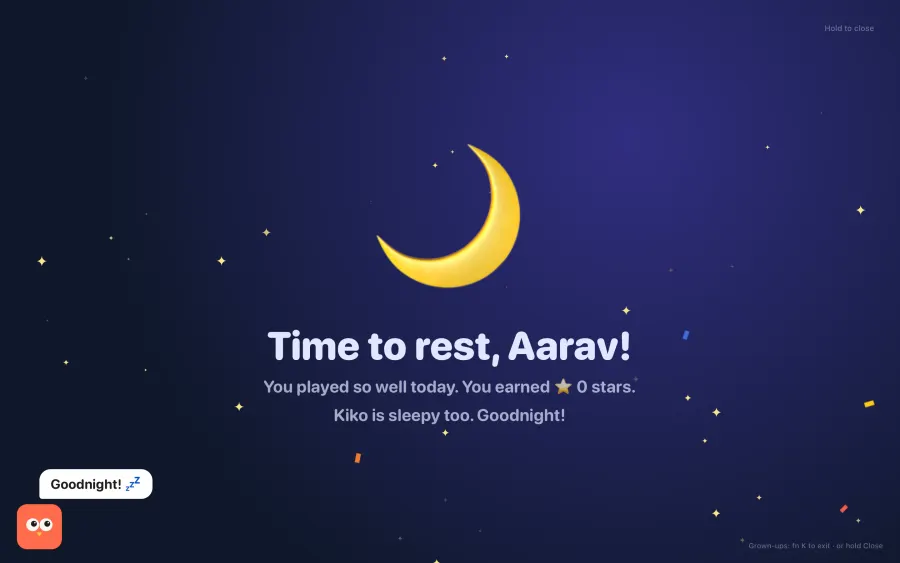
🌙 Bedtime built in
When the daily time runs out, a calm moon and a lullaby say goodnight.
The grown-ups' window
Open Kiddo to see it. It's for you, not the child.
📈 Journey
Stars, stickers, minutes played and letters learned.
🧩 Activities
Turn each game on or off.
🧒 Your child
Name and age, and your own recorded hello.
🔒 Playtime
Daily limit, sounds and the shortcut.
🔄 Updates
Automatic, never during playtime.
🔐 Private
No accounts, ads or tracking. Everything stays on this computer.
If something's not right
“Windows protected your PC”
That's Windows being careful with an app it hasn't seen many times. Click More info, then Run anyway. See step 3.
Alt Z does nothing
Another app may use Alt Z too (NVIDIA's GeForce overlay does). Open Kiddo's window, click the Shortcut button and press a new one, like Ctrl Alt K. Until then, use Start playtime from the owl in the taskbar tray.
“Kiddo is already on 2 computers with this email”
One purchase activates 2 computers. Moved to a new one? Tell me below, with your email, and I'll free a place.
The activation code didn't come
Check spam and Promotions, and that it's the email you paid with. You can ask for a new code after half a minute.
“Kiddo can't be opened” or “Apple could not verify Kiddo”
That's macOS being careful the first time. Go to System Settings → Privacy & Security, scroll down, click Open Anyway next to Kiddo, then Open. See step 3.
fn K does nothing
Kiddo needs Accessibility: System Settings → Privacy & Security → Accessibility → switch Kiddo on. If it's already on, switch it off and on again. Until then, use Start Playtime from the owl in the menu bar.
My keyboard has no fn key
Use Start Playtime from the menu bar, or pick a different shortcut in the grown-ups' window under Playtime & Safety.
How does my child get out? Can they?
Only a grown-up gets out: fn KAlt Z, or holding Close for a second and a half. ⌘Tab, ⌘Q and the Dock are blocked while Kiddo is playing.
I lost the download link, or I have a new computer
On the Kiddo page, tap Bought it? Download again and enter the same email. We send a fresh code and the download is right there. Each purchase can be downloaded 2 times; past that, tell me and I'll sort it out.
I paid but didn't get the email
Check spam and Promotions first. Still nothing after a few minutes? Use Download again with the same email, or tell me below with your email address.
Is there Kiddo for iPad or Android?
Not yet. Kiddo runs on a Mac and on a Windows PC.
How do I remove Kiddo?
Right-click the owl in the taskbar tray and choose Quit Kiddo. Then open Settings → Apps, find Kiddo and choose Uninstall.
How do I remove Kiddo?
Quit it from the owl in the menu bar, then drag Kiddo from Applications to the Trash. To remove your child's progress too, delete ~/Library/Application Support/Kiddo.